Version 3 is compatible with Windows 8 in Desktop mode. Indigo is not a Metro app, so it does not run on Windows RT. The full list is under supported Windows versions.
How do I change the backlog size?
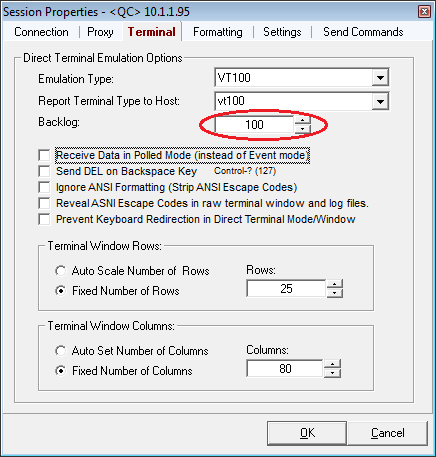
Indigo can keep from 5 to 20,000 lines in the terminal backlog. With a session open, choose Session, then Session Properties. The backlog setting is on the Terminal tab.
A backlog at the high end of that range can affect performance, depending on the computer's processor and memory. Ordinary use usually shows no slowdown.
How do I enable VT100 emulation?
VT100, and other emulation modes such as Linux, are set in the session properties. With a terminal session open, choose Session, then Session Properties.
On the Terminal tab, set Emulation Type and Report Terminal Type to Host, then press OK. Disconnect and reconnect so the client and host can negotiate the emulation. The choice is saved in the session, so it is used the next time that session opens.
How do I send keystrokes straight to the session?
Direct Terminal Mode sends keystrokes to the connected host. That is what hosts need when they expect interactive keyboard input or an emulation such as VT100.
With a session open and connected, choose Session, then Direct Terminal Mode. Put the cursor in the data window. Characters you type are sent immediately, the same way HyperTerminal does.
Indigo keeps some Ctrl shortcuts for itself, including Ctrl+C for copy. If a keystroke does not reach the host, use Session, then Transmit Control Code. You can also add Shift: Ctrl+Shift+C sends Ctrl+C to the session.
Which versions of Windows were supported?
Indigo was officially supported on these systems:
Windows 10
Windows 8, in Desktop mode
Windows 7, x86 and x64, all editions
Windows Server 2008, x86 and x64, all editions
Windows Server 2012, x86, all editions
Windows Vista, x86 and x64, all editions
Windows Server 2003, x86, all editions
Windows XP, x86, all editions
Indigo was also known to run, without an official support claim, on Windows 2000 Server, Windows 2000 Workstation, Windows 98, and Windows 95.
What forms of payment did shadeBlue accept?
While licenses were for sale, shadeBlue accepted Visa, MasterCard, Discover, American Express, purchase orders, checks, and PayPal. New licenses are no longer for sale.
I placed an order and did not get a license email
Online orders were filled automatically. After payment was confirmed, an email with the license information was sent. Credit-card and PayPal orders usually produced that email within 30 minutes.
If the email has not arrived after two hours, check the junk-mail folder. New licenses are no longer for sale.
Does Indigo support SSH?
Yes. Indigo supports SSH1, SSH2, and SSH Auto. Version 3 also supports SSH private-key authentication, and it validates and caches host fingerprints. Those connections are listed on the features page.
Can I install Indigo on a PC and a laptop?
Two installations need two licenses. A license covers one computer. See Licensing.
Does Indigo support USB and Bluetooth serial devices?
In almost all cases, yes. Indigo works with most USB serial devices and Bluetooth serial devices. A few devices ship drivers that do not follow the standard serial interface, and Indigo may not work with those.
Version 3 includes a newer serial library that worked with nearly all of the serial devices shadeBlue had tried. The last published build is on the download page.
My serial port does not appear in Indigo
Some USB serial devices use COM ports that Indigo does not detect on its own. Program Preferences, on the Com Port tab, can override that detection and list the ports you name.
COM ports above 16
Version 3 supports COM ports through port 256. Version 2 used a Microsoft serial library that stopped at port 16. If the port number can be changed, assign it to port 16 or below. Those Windows steps are on the COM port tip.
If the device cannot change its port number, Version 2 had a replacement for that Microsoft library. The instructions are in mscomm32.zip (opens in a new tab).
How do I get software updates?
Help, then Web Update, checks online and can download and install an update when one is available. You can also open Help, then About, and compare that version with the last published build on the download page. A newer build can be installed over a copy that is already licensed.
Activate the new installation with the same license key. If activation fails, contact support.
Close Indigo on the old computer so the latest settings are saved. Copy preferences.xml and these folders from the old install path to the same path on the new computer:
C:\Program Files\shadeBlue\Indigo\preferences.xml
C:\Program Files\shadeBlue\Indigo\CONFIG
C:\Program Files\shadeBlue\Indigo\LOG
C:\Program Files\shadeBlue\Indigo\SCRIPTS
C:\Program Files\shadeBlue\Indigo\SESSIONS
On 64-bit Windows Vista, Windows 7, and Windows Server 2008, that folder is Program Files (x86). Starting Indigo on the new computer should bring back the settings and library files. Version 3 also keeps preferences, data files, and sessions outside the program directory.